Import a spectral profile in PixInsight
Use this walkthrough for profiles with an XSPD download. The merge was checked on Windows with PixInsight 1.9.4 Lockhart / PCL 2.10.4. This verifies file import and sample round-trip, not SPCC accuracy.
1. Choose a profile that matches your setup
On a camera page, select the exact response record and read its source, method, scope, wavelength unit, scale, channel coverage and gaps before downloading. Prefer a source-reviewed measurement for the documented setup. A separately labeled estimate is a model with stated assumptions. A sensor-only QE curve describes the chip; it is not the complete response of a camera with its window, filters or optics. Do not substitute one category for another.
For example, the Canon EOS 90D page offers XSPD for Image Engineering's 2024 measurements. Metadata calls it measured but leaves scope, scale and optical configuration unknown. It is not a confirmed stock-camera curve or absolute QE. Download the Canon EOS 90D XSPD and its metadata sidecar.
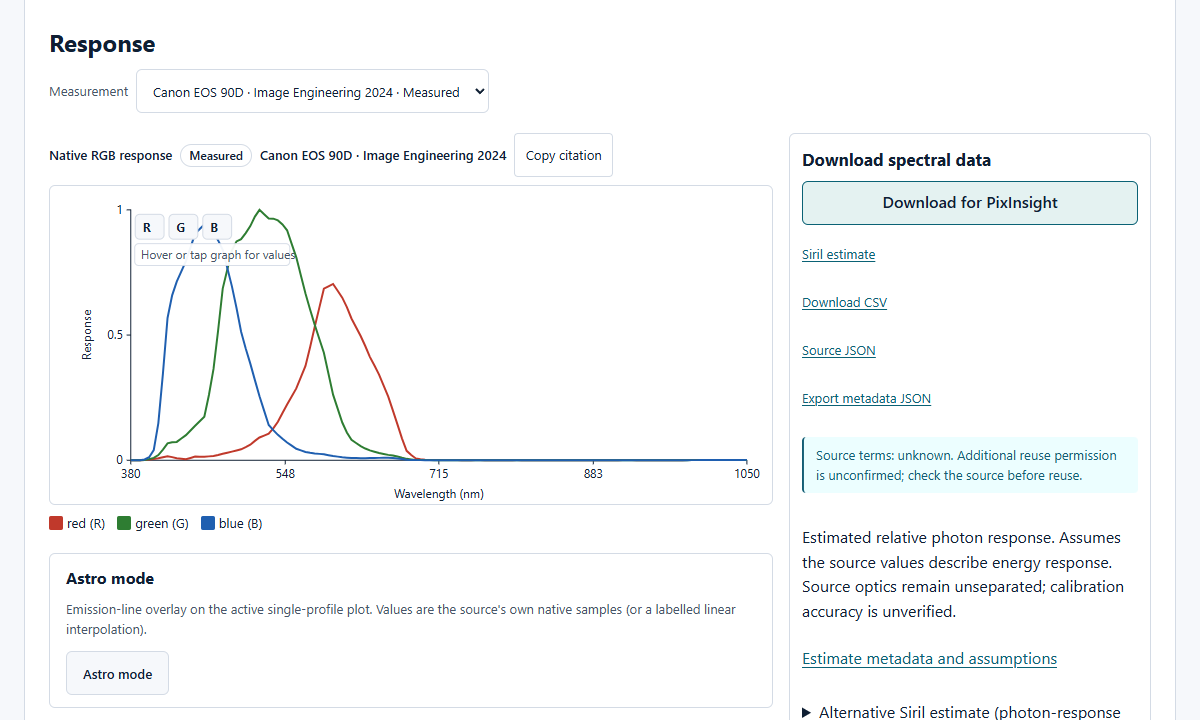
2. Back up, inspect and merge
- In PixInsight, open Resources → Manage Disk Resources and note the active instance's
ConfigDirectory. Close PixInsight. Copy that instance'sfilters-NNN-pxi.xspdto a backup location. Leave the global factoryfilters.xspduntouched. - Open the sidecar JSON and inspect
original.profile.wavelength_unit,response_scale,response_scope,sample_count, source details, and documented gaps. Unknown values stay unknown. The XSPD itself does not declare wavelength units inline. - Check the XSPD channels against the selected profile: the Canon example has RGB
R,GandBentries; a mono export retains its mono channel. Fragments should have nodefaultattributes. Keep any shorter wavelength range or missing samples as documented. - Reopen PixInsight and choose Resources → Manage Filters → Merge XML filters database, then select the XSPD. Do not choose Import XML filters database; that replace action expects a complete catalog. Keep custom entries in the per-instance catalog rather than writing into protected application directories.
3. Check the result
For the Canon example, confirm the new RGB entries appear; for another profile, check its documented channels. Existing L, R, G, B and Q defaults must remain. Compare the per-instance file with your backup if needed. These fragments do not assign new defaults. Keep the sidecar with the XSPD.
For the Canon example, the XSPD exporter retains the longest uninterrupted native run per channel without interpolation, padding or rescaling. This preserves source data; it does not resolve the unknown scale or optics. The downloadable profile's license and downstream reuse grant also govern what you may reuse or redistribute.
4. Troubleshoot common import issues
- Import returns false: check that you selected Merge, not Replace. If Merge fails, stop and report the XSPD rather than editing its samples or adding defaults.
- The curve ends early: partial coverage is source coverage. Do not extend or zero-fill it.
- Your defaults changed: close PixInsight and restore the per-instance backup. Do not overwrite the global factory catalog.
- No XSPD download is shown: that profile has no compatible XSPD export. Use its listed native downloads instead; do not rename another profile's file.
See the sensor records, camera catalog and data and download guide to compare scopes and available formats. For help with a different application version, consult PixInsight's official support forum alongside the metadata supplied with each profile.